
Client portal · Boarding
Manage your saved cards
In Vivetra: Saved cards
On this page
Saved cards lists the cards you've kept on file with the facility. You can add a card, choose which one is offered first, and remove one. The facility never sees or stores your card number; the card is held by its payment provider.
- Select Saved cards in the portal menu.
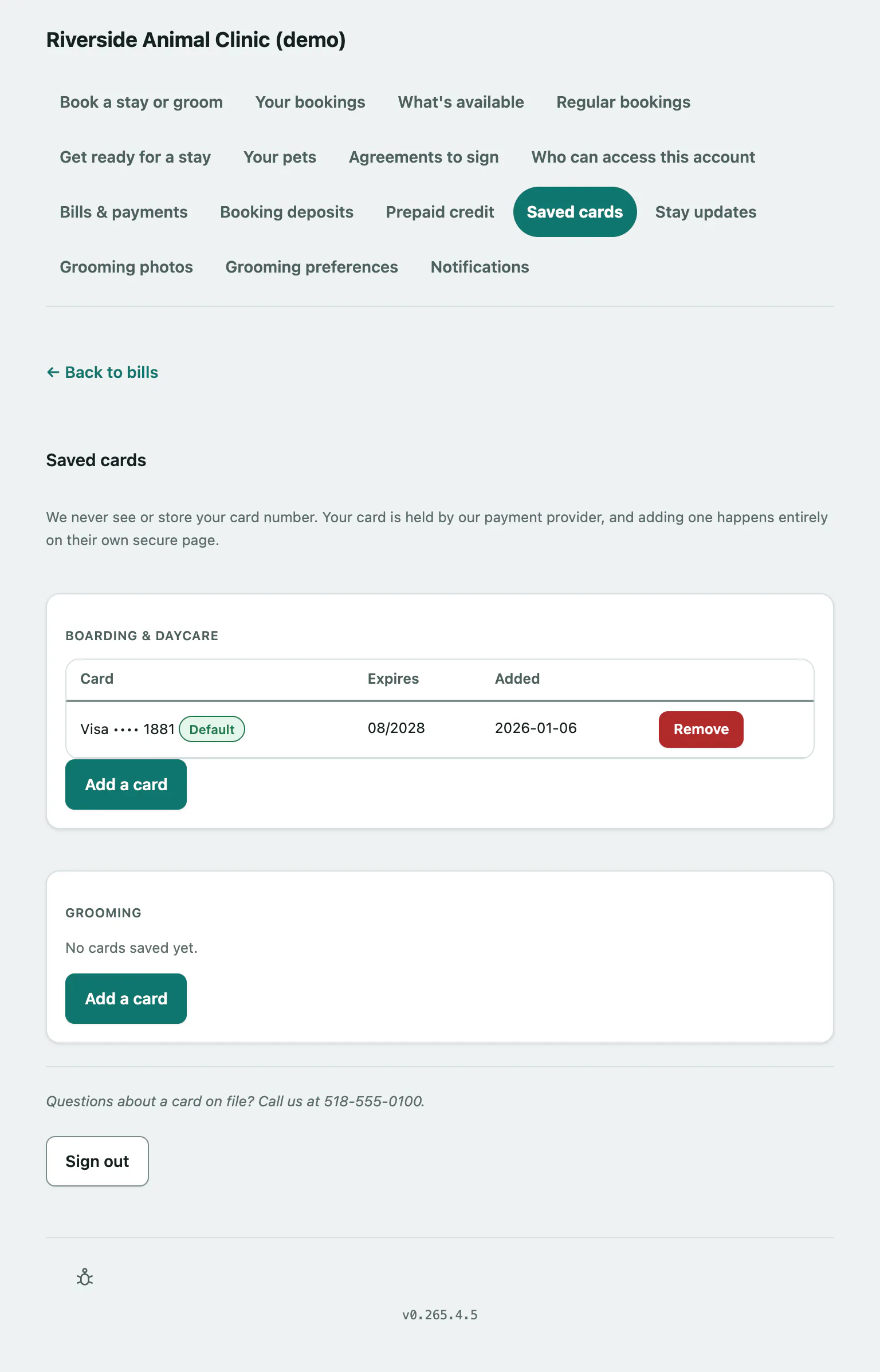
Cards are grouped by Boarding & daycare and Grooming. Each shows the card, its expiry date and when it was added. Default marks the card offered first, and Expired marks one that's past its date.
Add a card
- Select Add a card, then enter your card on the payment provider's secure page. No money is taken.
When you come back, the page says Your saved cards are up to date. You can also save a card while paying a bill (see Pay a boarding or grooming bill › Pay a bill).
Choose your default card
- Select Use this one first next to the card.
The page says That's now the card we'll offer you first.
Remove a card
- Select Remove next to the card.
The card is removed straight away, with no confirmation step, and the page says That card has been removed.
If the page says Keeping a card on file isn't available on your account right now, the facility doesn't offer saved cards.