Getting started
Finding your way around
In Vivetra: Dashboard · Search
Vivetra has one menu down the left-hand side of every screen. On a phone or small tablet it's folded away behind the Menu button at the top.
The menu
From top to bottom, the menu has:
- Your practice's logo (or the word Vivetra). Select it to go back to the dashboard.
- Dashboard, Bite Incidents and Search.
- Records: patients, people, lab results, callback tasks, patient recalls and the controlled drug registers.
- Admin: staff, locations and rooms, and practice-wide settings.
- One group for each module your practice uses, such as Vet Practice or Boarding. Some modules split their items into more groups, like Vet Practice Scheduling and Vet Practice Billing.
Select a group to open it. The group holding the screen you're on is highlighted.
At the very bottom of the menu you'll find:
- My Account, for your own details (see Your account and settings).
- The bug button (Report a bug). Describe what happened and select Send report. You can attach a screenshot.
- The version number. Select it to see What's new in this version of Vivetra.
The dashboard
The dashboard greets you by name and shows your role. It's made of cards with today's numbers and charts.
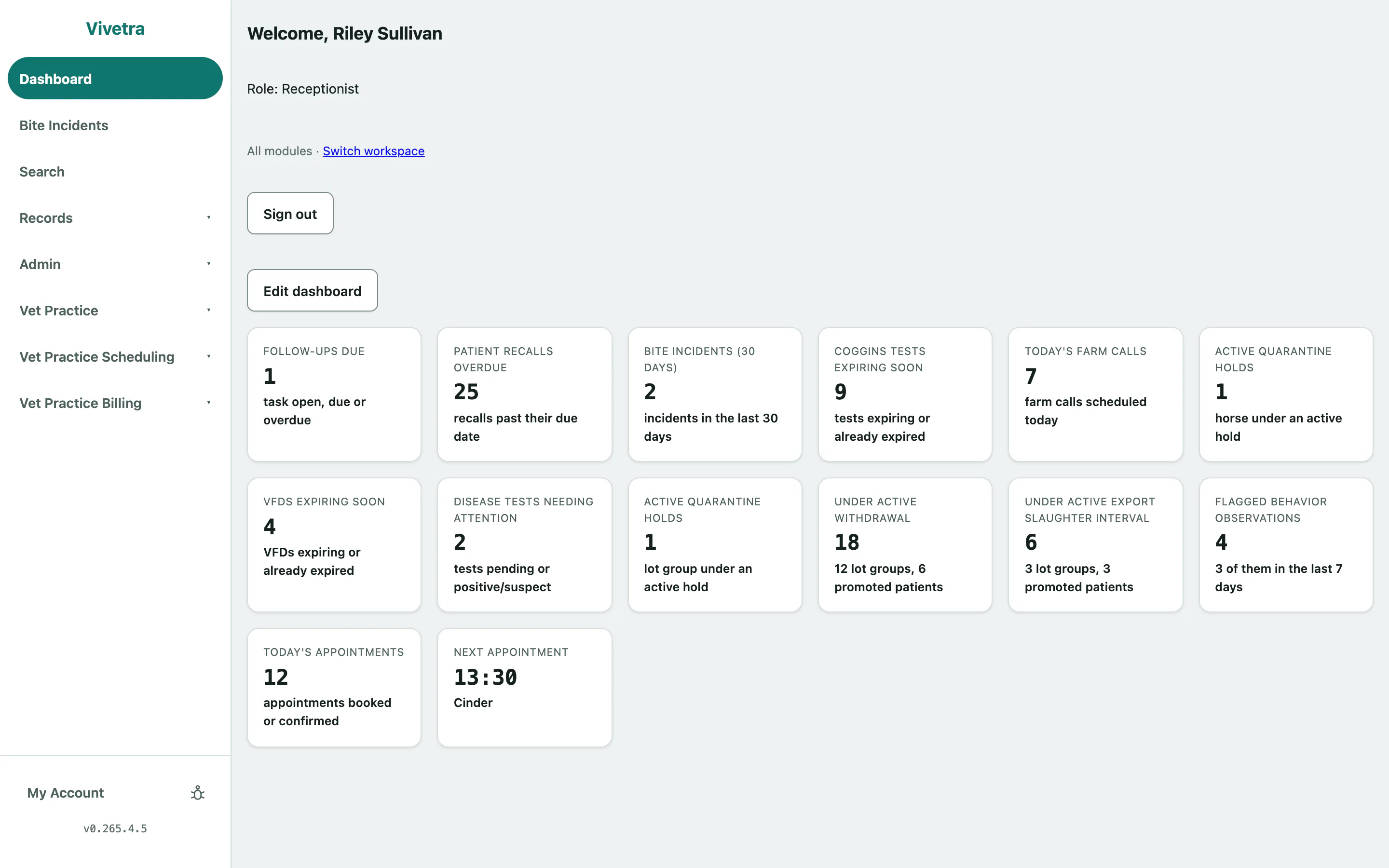
- Select Edit dashboard to choose which cards you see and their order, then Save dashboard.
- If you use more than one module, Switch workspace changes which module's cards are shown.
- Sign out is at the top of the dashboard.
Search for a patient or person
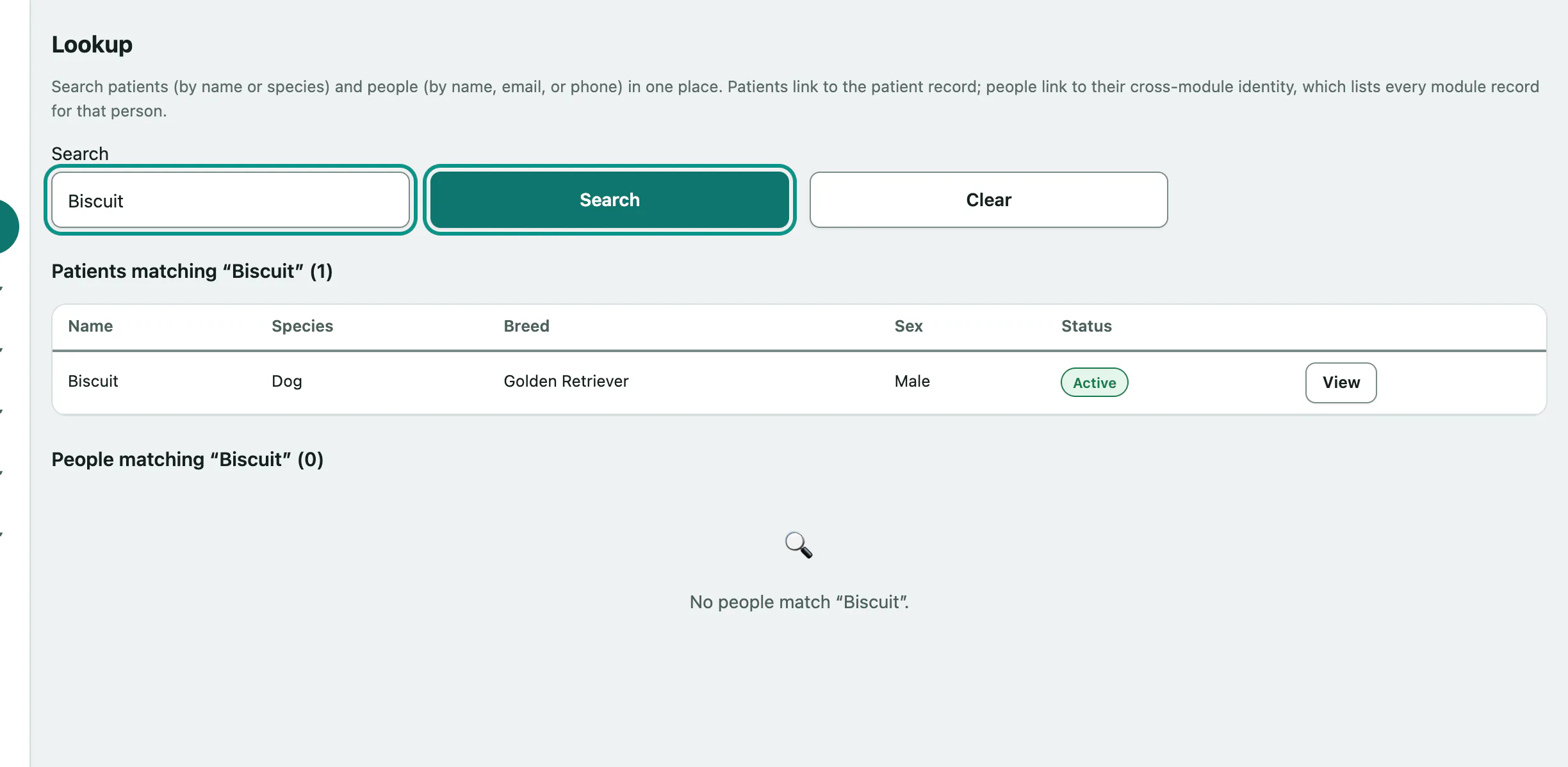
The quickest way to find anyone is Search in the menu. One box searches both patients and people, so you don't need to know which one you're looking for.
- Select Search in the menu. The Lookup screen opens.
- In the Search box, type a patient's name or species, or a person's name, email or phone number. For example: Bella, Labrador, Jane Smith or 555-1234.
- Select Search. Patients and people are listed separately. Select a row to open the record.