
Boarding · Grooming
Set up grooming stations and groomer shifts
In Vivetra: Grooming › Stations · Grooming › Groomer Shifts
On this page
Grooms are booked against two things: a station (a tub, table or dryer) and a groomer who is working at that time. Stations lists the stations you have, and Groomer Shifts holds each person's working hours, breaks, time off and what kinds of pet they can take.
Only staff who can manage grooming settings see these two screens, usually the practice manager.
Add a station
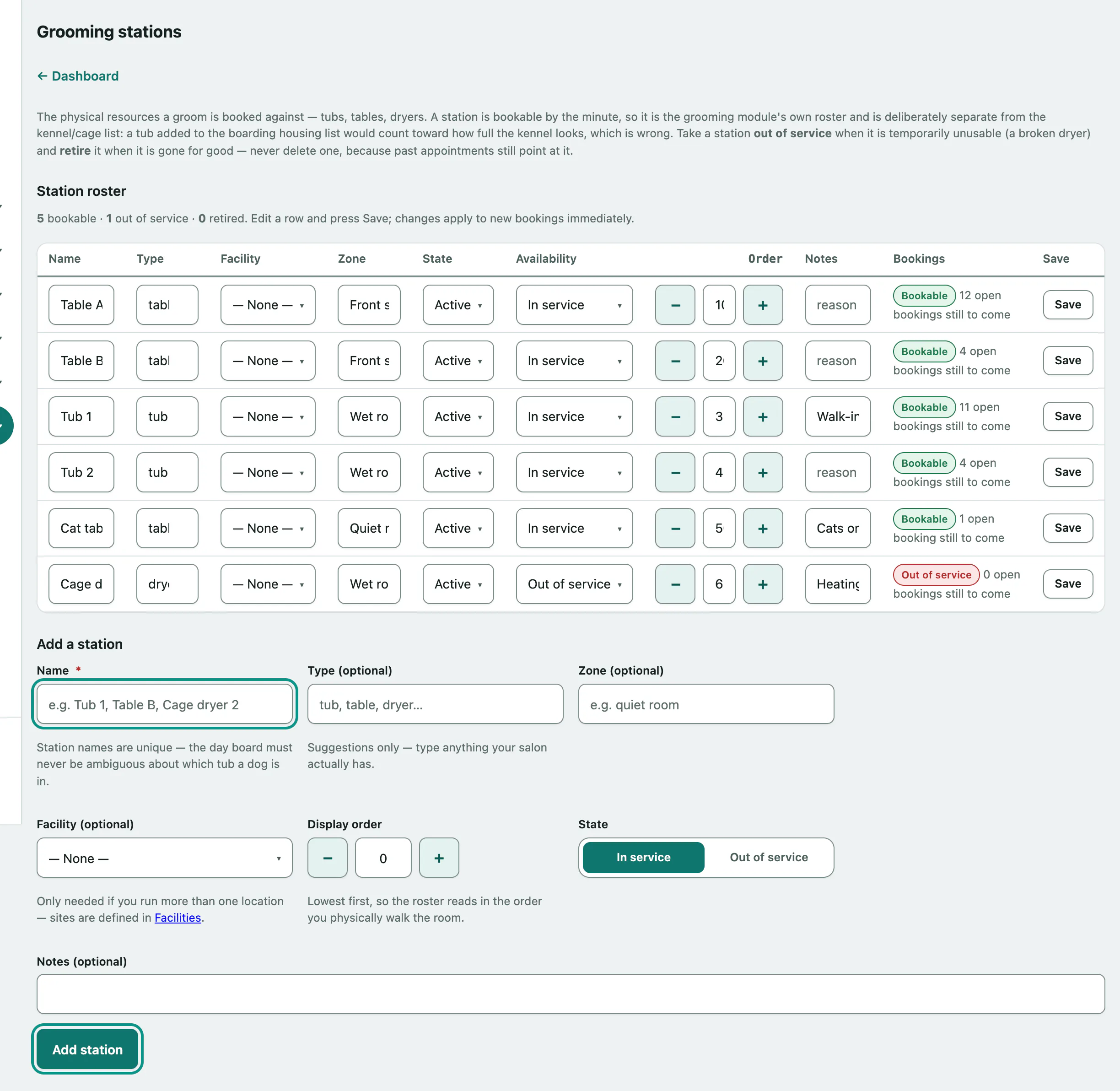
- In the menu, open Grooming and select Stations.
- Under Add a station, enter a Name, such as "Tub 1". Names must be unique.
- Select Add station.
Type (optional), Zone (optional), Facility (optional), Display order, State and Notes (optional) are all optional. Facility (optional) only matters if you run more than one location. The roster lists stations lowest Display order first.
Stations are separate from your kennels and rooms, so a tub never counts toward how full the kennel looks.
Take a station out of service or retire it
You never delete a station, because past appointments still point at it. Instead, change the row in the Station roster and select Save:
| Setting | Use it when |
|---|---|
| Out of service | The station is temporarily unusable, like a broken dryer. |
| Retired | The station is gone for good. |
The Bookings column shows how many open bookings each station still has. If a station that can't take a dog still has appointments, a warning links you to the day board to move them (see Book and run grooming appointments).
Plan a week of shifts
Groomer Shifts shows one week at a time, one row per person, with each day's working hours, breaks and time off. The Bookable column is each person's working hours with breaks and time off taken out.
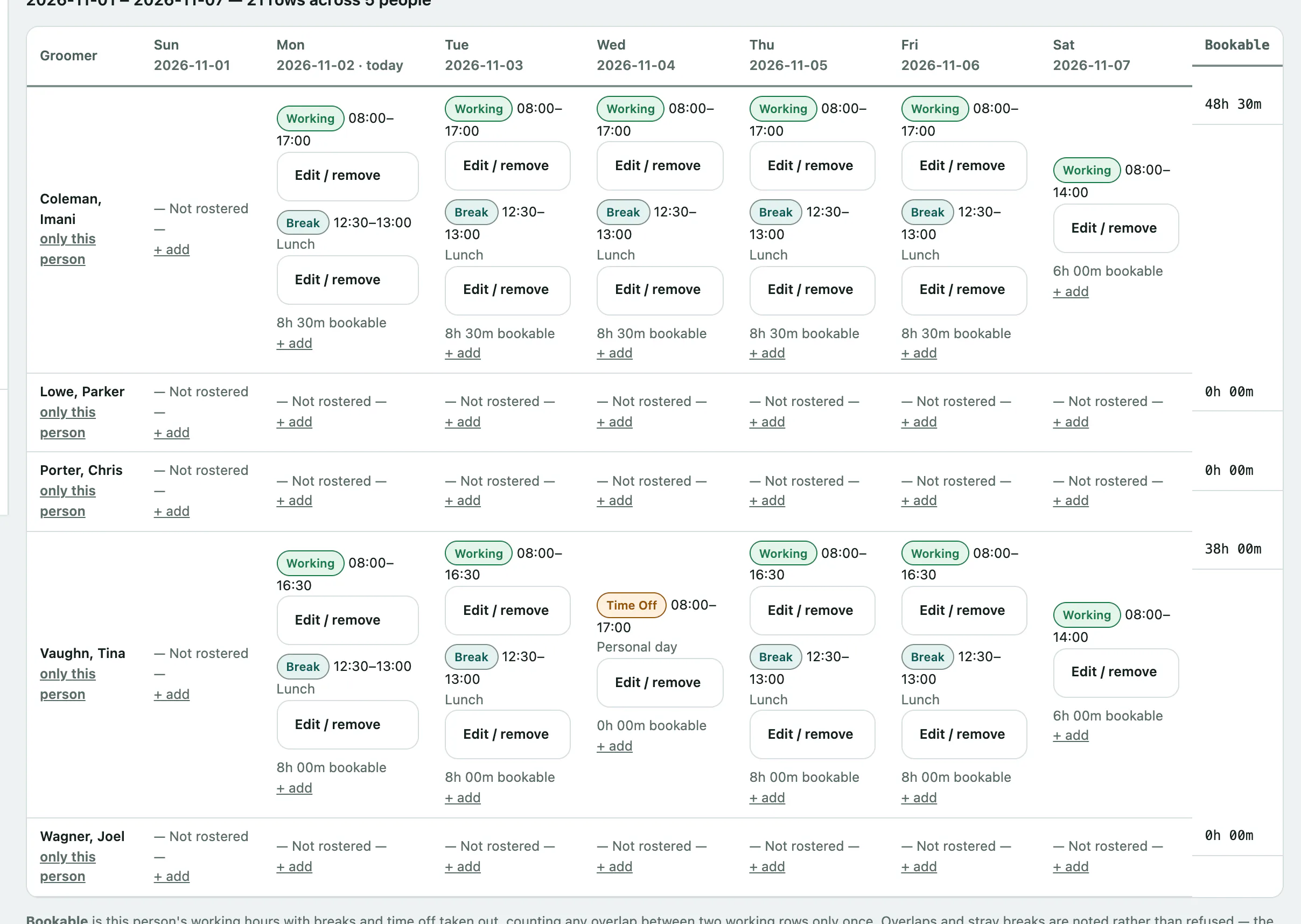
- In the menu, open Grooming and select Groomer Shifts.
- Under Week, pick Any date in the week. You can also narrow it to one Groomer.
- Select Show week.
Use the arrows under the form to step back or forward a week, or This week to come back.
Add hours, a break or time off
- Under Add hours, a break, or time off, choose the Person. Salon roles are listed first, but any active account can be rostered.
- Pick the Date.
- Choose the Type: Working, Time Off or Break.
- Enter Starts and Ends. Add a Note if it helps.
- Select Add row.
The + add link in any day's cell opens this form with that person and date already filled in. Times are on the practice clock, and the end must be later the same day. A shift that runs past midnight is two rows, one per date.
To change or delete a row, open Edit / remove under it, then select Save row or Remove this row.
Copy a week forward
There's no repeating-shift rule. Instead, set up one week and copy it.
- Under Copy this week forward, pick a date in Copy into the week containing. It must be later than the week on screen.
- Select Copy forward.
Copy breaks too is ticked by default; untick it to copy working hours only. Time off is never copied. Rows that already exist in the target week are left alone, so copying twice is safe. The copy always covers everyone in the week on screen, even if you've filtered to one groomer.
Groomer capabilities
Groomer capabilities records what each person can be put on, such as a doodle, a cat or an aggressive dog. A pet's record carries what it needs from the same list. When a pet is booked with a groomer who doesn't hold a capability it needs, the booking screen warns and lets the person booking decide.
Who covers what lists every capability against how many pets need it and how many active staff hold it. Nobody covers this means every booking for those pets will warn.
Changing capabilities needs staff-management permission. Without it you can read the list but not change it.
- Under Mark what someone can take, choose the Person.
- Pick or type the Capability. New ones are stored in lowercase with underscores, so "Aggressive Dog" becomes
aggressive_dog. - Select Add capability.
To take one away, open Remove next to it and select Remove this capability. To change its note, remove it and add it again.