
Boarding · Grooming
Use the grooming waitlist
In Vivetra: Grooming › Waitlist
The Waitlist under Grooming holds requests for a groom you couldn't fit in yet, such as when an owner asks online for a slot that's full. You review each request, offer a slot, and turn it into a real appointment, or decline it.
Anyone can see the list. Triaging, offering, booking, declining and withdrawing need waitlist permission, which front desk and practice managers have.
Open a request
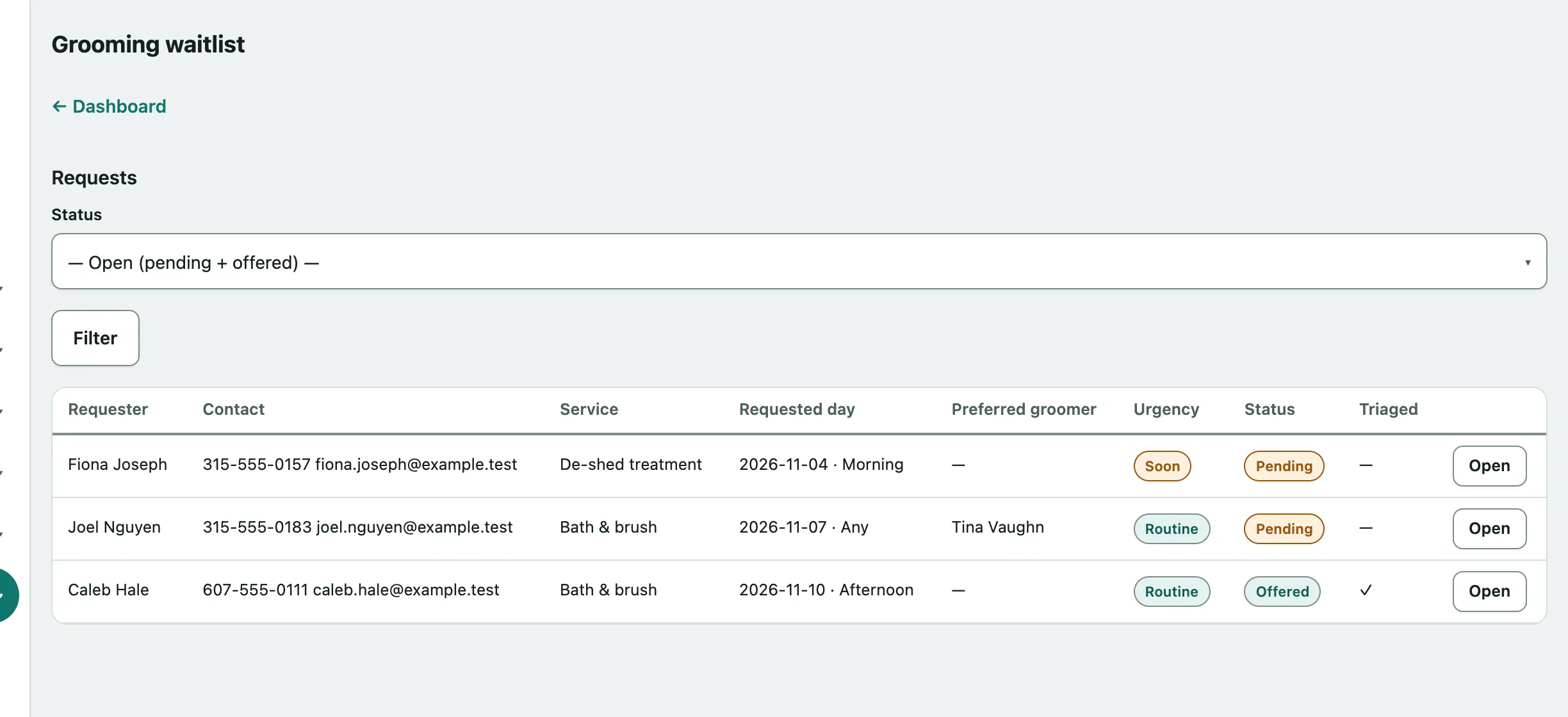
- In the menu, open Grooming and select Waitlist.
- The list shows open requests (Pending and Offered). To see others, choose a Status.
- Select Open on a request.
Each request shows the requester, contact details, pet, Service wanted, Requested day and time window, Preferred groomer and Urgency. A caution pill or a Handling caution on this client. warning means the client has a handling risk on file.
Review it
Triage records who reviewed the request and when. You must triage a request before you can mark it offered.
- Under Triage / review note, add any Staff notes (optional).
- Select Save triage.
You can triage again at any time while it's open; the newest note replaces the last.
Once you've offered the owner a slot, select Mark offered under Offer a slot. This only changes the status; it doesn't send the owner anything.
Book the appointment
You can book straight from Pending or Offered. Booking creates a real grooming appointment, links it to the request, and marks the request booked.
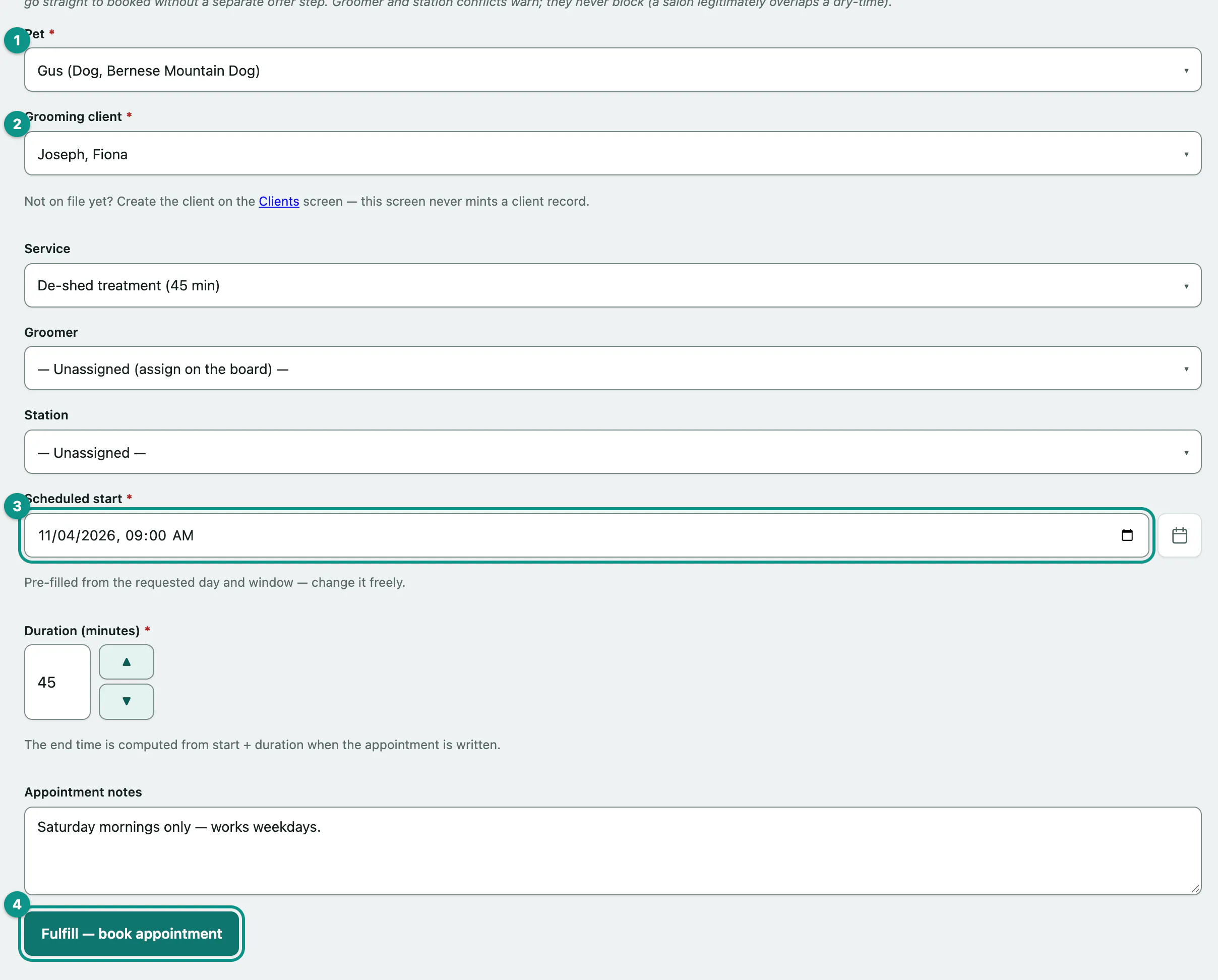
- Under Fulfill — book the appointment, check the Pet.
- Check the Grooming client. If they aren't on file, add them on Manage grooming clients first.
- Set the Scheduled start. It's pre-filled from the requested day and window. Choose a Service, Groomer, Station and Duration (minutes) as needed.
- Select Fulfill — book appointment.
The owner is told it's booked through their usual contact preference. Then select View appointment → to open it (see Book and run grooming appointments).
If the groomer or station is already busy, you'll see Scheduling conflicts on the slot you chose. These don't block the booking: tick I have reviewed the warnings above — book anyway (a groomer/station overlap warns; a person decides) and select Fulfill — book appointment again.
Decline or withdraw
Under Decline or withdraw:
- Select Decline (staff decision) when you can't offer the groom. The owner is told.
- Select Mark withdrawn (requester backed out) when the owner no longer wants it.
Each has an optional note. Once a request is booked, declined or withdrawn it's locked and nothing more can be done with it.