
Records & admin
Use the patient record
On this page
The patient record is the one page that pulls together everything about an animal: who's responsible for it, its problems, visits, files and links to the rest of its chart. Open it by selecting View on any patient in Patients or Search.
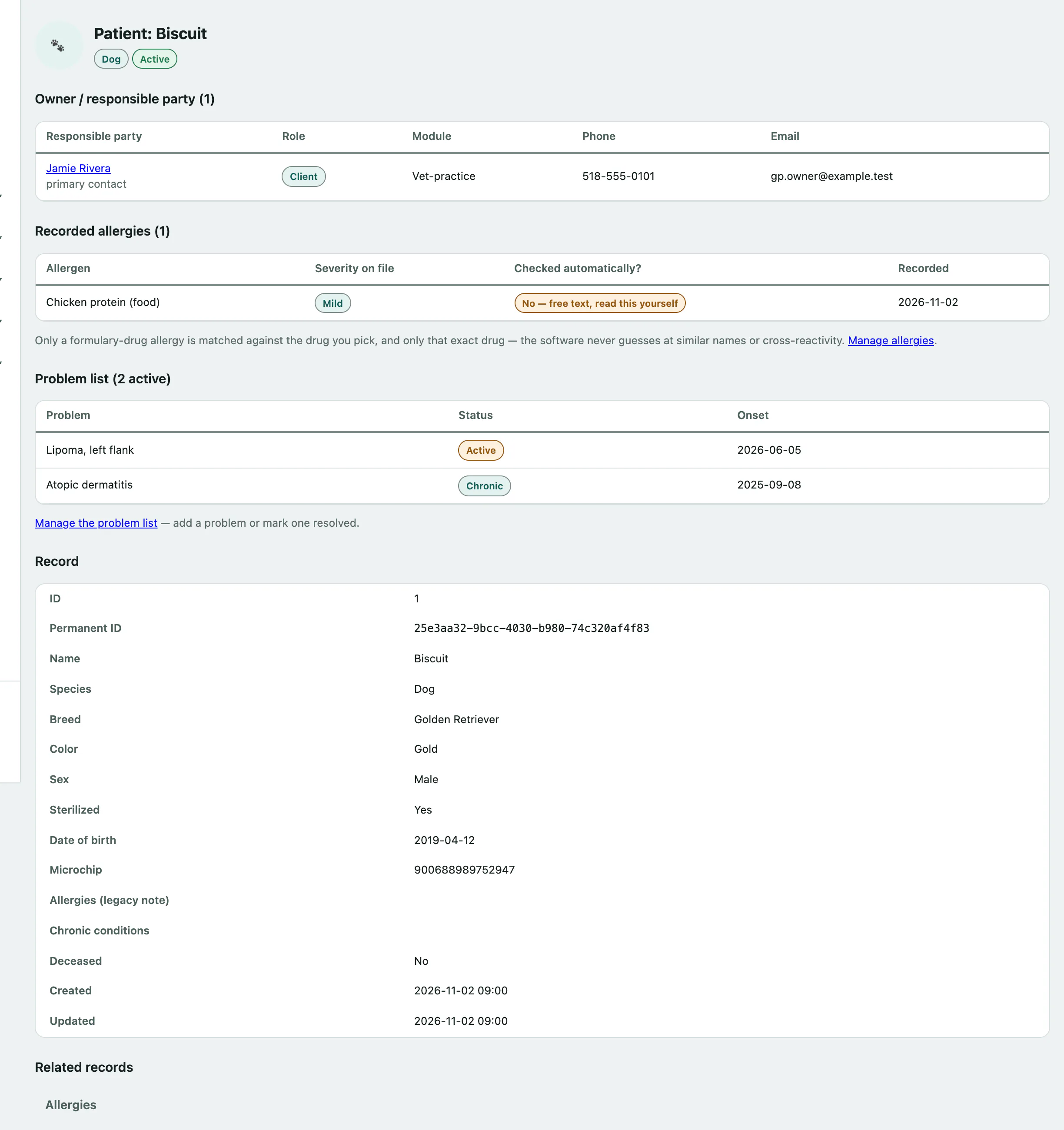
What's on the record
From top to bottom:
- The header shows the name, species and Active or Deceased. If the patient has a caution flag, a CAUTION / SAFETY FLAG. banner with the notes sits right under it.
- Owner / responsible party lists every person linked to the patient in any module, with their role, phone and email. Select a name to open their record. A patient with no owner yet (an unclaimed stray or a walk-in, say) says so here. Owners are linked from the module you work in, not from this page.
- Problem list shows active problems. Manage the problem list takes you to the full list (see Keep the problem list and allergies up to date).
- Record has the details: ID, breed, colour, sex, date of birth, microchip and so on.
- Related records, Visits & encounters, Orders & controlled substances and Imaging & attachments, covered below.
Open the rest of the chart
Related records is a row of links to the patient's other screens: Allergies, Weight history, Vaccinations, Dental chart and Prescriptions always appear. Others only appear when they apply:
| Link | Shows when |
|---|---|
| Insurance claims, Consents & attestations, Book appointment | Your practice uses Vet Practice |
| Wellness plan | Your practice uses Vet Practice and your role can enrol wellness plans |
| Equine profile / Livestock profile | The patient has one |
| Hospital admit | Your practice uses Hospital |
| Owner contact log | The patient is in hospital right now |
Visits & encounters lists every visit or stay across modules, newest first. Select one to open it.
Upload an X-ray or other file
Under Imaging & attachments you can keep radiographs, ultrasound stills, outside lab PDFs, referral letters or a scanned consent on the patient's chart. Uploading needs a role that writes clinical notes, such as a veterinarian.
- Under Upload an attachment, choose a Category: photo, external lab result, referral letter, signed consent, imaging or other.
- Choose the File and, if you like, add a Caption.
- Select Upload attachment.
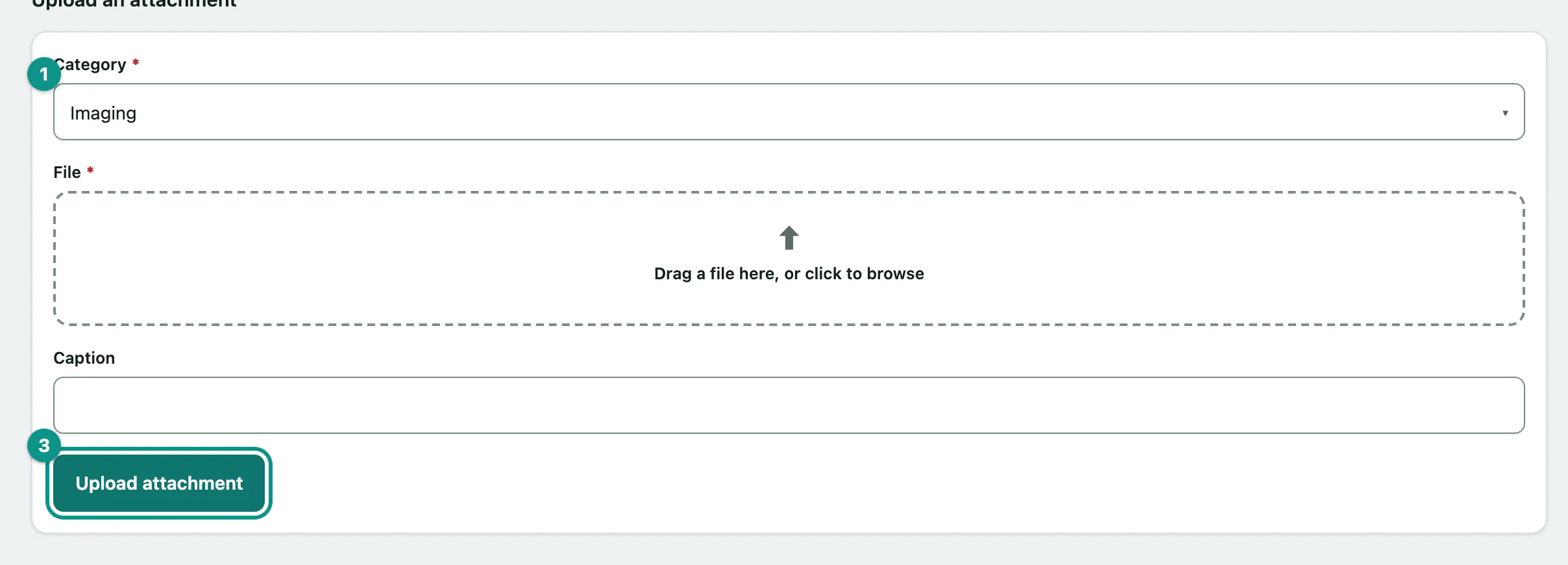
Files can be up to 25 MB, or 100 MB for a DICOM (.dcm) file. Upload a .dcm straight from the X-ray machine or PACS and View (DICOM) opens it in the built-in viewer. Anything you adjust in the viewer is only on your screen; Download original file always gives you the file exactly as it was uploaded.
Opening or downloading a file needs permission to view the full chart. Without it you see the list but not the View and Download links.
Edit the patient's details
If your role can edit patients, the Edit form at the bottom of the record has the same fields as the new-patient form.
- Change what you need, starting with Name at the top.
- Select Save changes.
Deceased status isn't on this form. It's set by the screen that recorded the death, such as a boarding died-in-care record or a shelter outcome.