
Vet Practice
Find or add an owner
In Vivetra: Vet Practice › Owners
Owners is where you look up a pet's owner and add a new one. Everyone can search; adding an owner needs permission to edit owner records, which front desk staff and practice managers have.
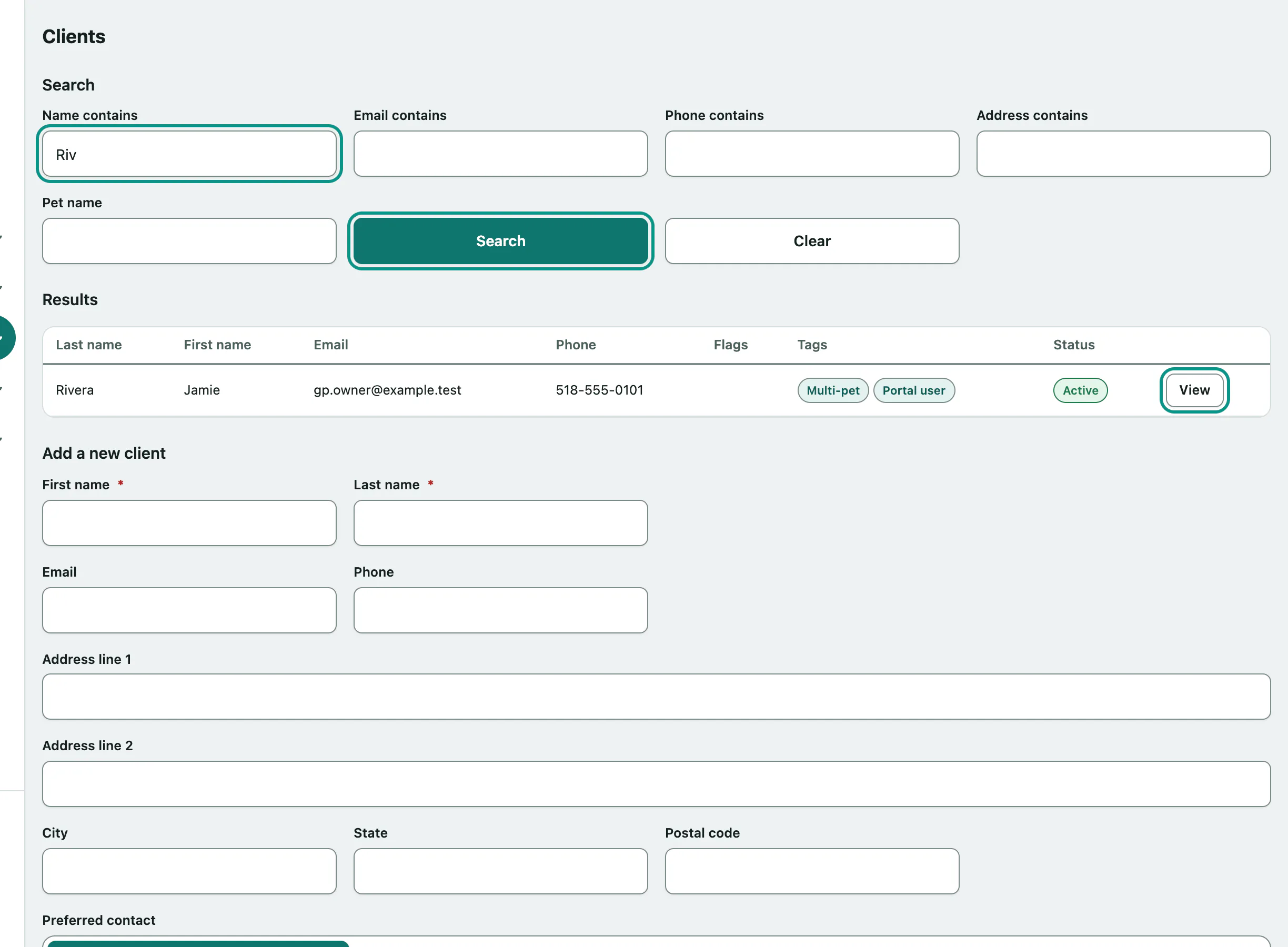
The screen is headed Clients. Owners and clients are the same records.
Find an owner
- Select Owners in the Vet Practice group of the menu.
- Start typing the owner's first or last name in Name contains. Matching owners appear under the box as you type, with their email or phone number to tell them apart. Select one to open their record.
- To search on something else, fill in any of the other boxes in the Search form and select Search.
- In Results, select View next to the owner you want.
| Box | Finds owners whose… |
|---|---|
| Name contains | first or last name contains what you typed |
| Email contains | email address contains it |
| Phone contains | phone number contains those digits. Spaces, dashes and brackets don't matter, so 518-555-0101 and (518) 555 0101 find the same owner |
| Address contains | address lines, city, state or postal code contain it |
| Pet name | have a pet whose name contains it |
If you fill in more than one box, an owner has to match all of them. Clear empties the search.
Results are sorted by last name and show at most 200 owners, so narrow the search if you don't see who you want. With nothing filled in, the list starts from the top of the alphabet. The columns show:
- Flags: Caution when the owner has a caution flag. Check their record before booking.
- Tags: the labels staff have added, like "Prefers text".
- Status: Active or Inactive. Deactivated owners and owners merged into another record show as inactive.
If nobody matches you'll see No clients match your search.
Add a new owner
Search first, so you don't create a second record for someone already on file. If you do end up with a duplicate, see Merge duplicate owners.
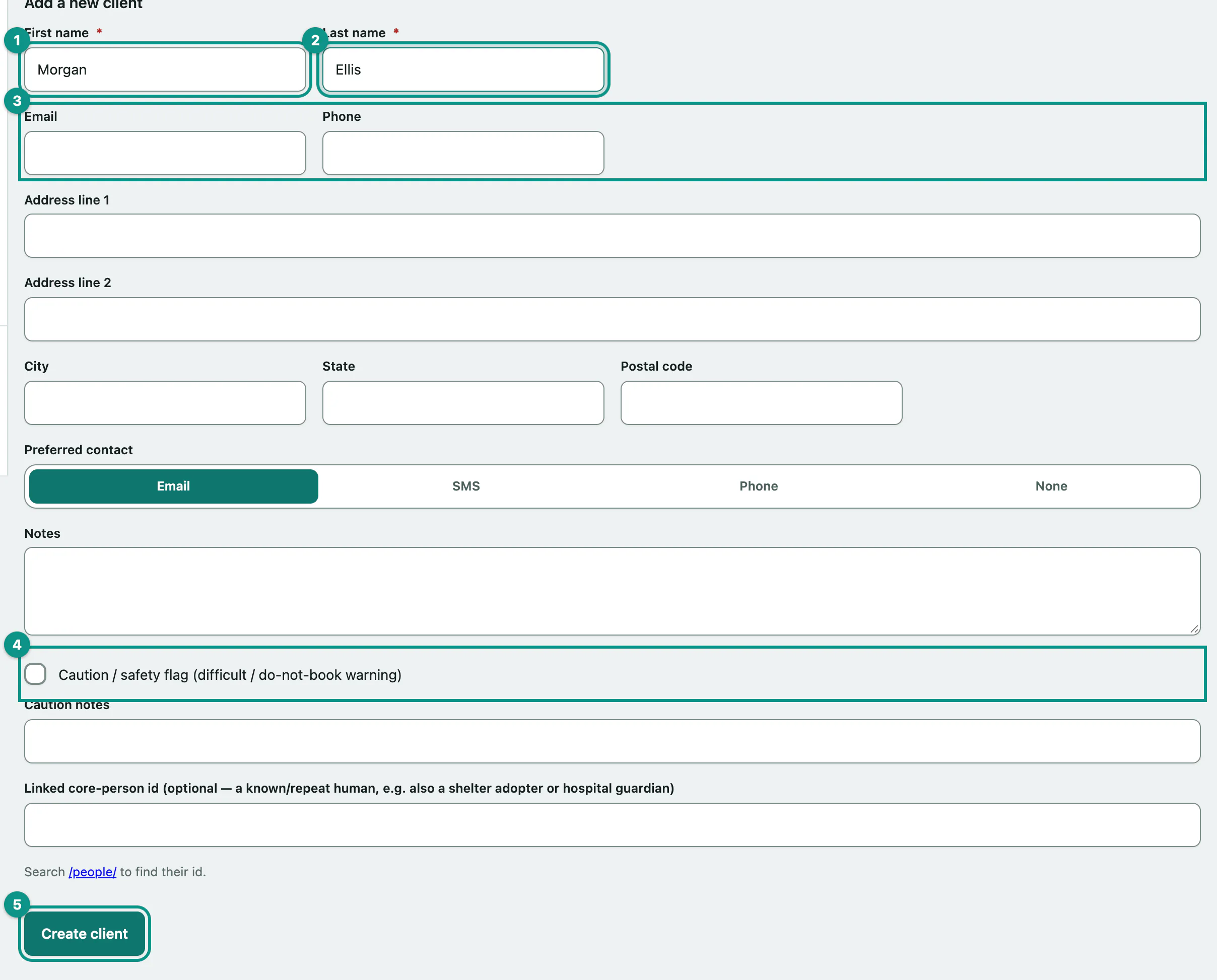
The Add a new client form is at the bottom of the screen.
- Enter the owner's First name.
- Enter their Last name. First and last name are the only required fields.
- Fill in whatever else you have in the Add a new client form: Email, Phone, the address, Preferred contact (Email, SMS, Phone or None) and any Notes.
- If staff should be warned before dealing with this owner, tick Caution / safety flag (difficult / do-not-book warning) and say why in Caution notes.
- Select Create client.
The new owner's record opens. Their pets aren't attached yet; link them from the record (see Work with an owner's record › Link a pet).
The last box, Linked core-person id, is optional. Fill it in only when the same person is already on file elsewhere in Vivetra, for example as a shelter adopter, and you know their number from People. Otherwise leave it blank.
If the owner isn't saved
| Message | What to do |
|---|---|
| First name is required. | Enter a first name. |
| Last name is required. | Enter a last name. |
| No core people record with that id | The Linked core-person id is wrong. Correct it or clear the box. |
What you typed stays in the form, so you only need to fix the problem and select Create client again.